

What Most People Get Wrong About Photo Backup

Published on July 15, 2026
You probably think your photos are backed up. Most people do. They've copied files somewhere outside the phone. They've turned on cloud sync. So the photos must be safe. Except they usually aren't.
The problem isn't what you're doing. It's what those actions actually mean. A backup is a specific thing. Most people are doing something else entirely.
Meet Sara and Eleanor
Sara has been backing up her photos for years. She copies files to a hard drive. She has cloud sync turned on. She feels like she's done the responsible thing. She thinks about her photos as safe, so she doesn't think about it anymore.
Eleanor also backs up her photos. But she did something different. She spent time understanding what a backup actually is. Now she operates from a different mental model. Her approach looks different, and the difference matters more than she expected.
Over the next few sections, you'll see where Sara and Eleanor's approaches diverge, and what actually happens when something breaks.

The First Misconception: Backup Means Moving Files Somewhere
Most people, including Sara, believe: if photos are copied to a hard drive or uploaded to the cloud, they're backed up. The job is done. Files exist in a second location, so they're protected.
In reality, that's just storage. A backup and storage are not the same thing. Storage means the files exist. A backup means the files can be recovered when something fails.
What Sara is doing
Sara copied photos from her phone to an external hard drive sitting in her desk drawer. She also turned on cloud sync to her main cloud account. She now has files in three places: her phone, the hard drive, and the cloud. She believes she's protected because she has redundancy. Multiple copies exist.
But both copies are vulnerable to the same local risks. If the phone is stolen and the hard drive fails in the same month, she's lost everything. If a fire damages her desk, both devices are gone. Local storage is vulnerable to the same local risks. Sara has two copies of the same vulnerability.
What Eleanor is doing
Eleanor thought about this differently. She kept the original on her phone. She created a copy on an external hard drive. But she also made sure that copy is stored independently, away from the phone.
More importantly, she created a third copy in an off-site location: encrypted cloud storage that's separate from her main cloud account. This means if something happens to her phone or her desk, the photos still exist somewhere untouched. Eleanor has three independent copies in two different storage types, with one off-site.

The Second Misconception: Syncing Equals Backup
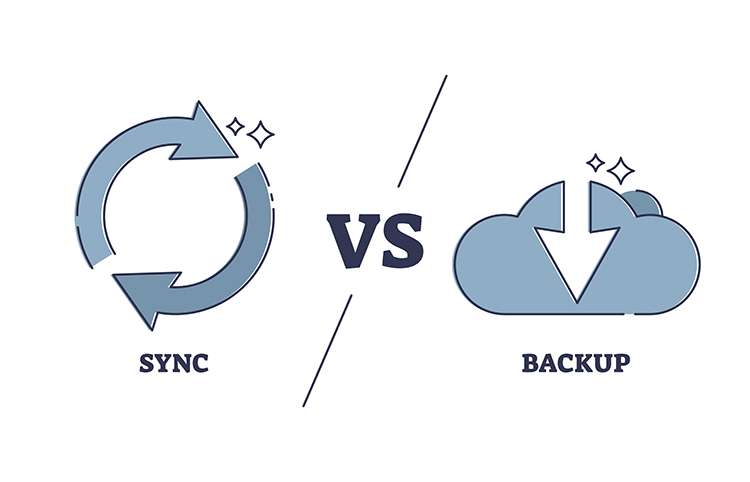
Cloud syncing is powerful. It keeps your photos accessible across devices. It protects against losing a single phone. It feels like a backup system. But syncing and backup work in opposite ways.
Syncing keeps multiple copies identical. If you delete a photo on your phone, it gets deleted from the cloud sync as well. If someone gains access to your cloud account and deletes your entire library, the sync removes it from every connected device. A backup creates a snapshot at a point in time. It doesn't change if the original is deleted or corrupted.
What Sara is doing
Sara set up cloud sync years ago. She feels protected because the photos are synced to the cloud. Years of photos have accumulated in one synced account. She believes they're safe because the files are synced to the cloud. She's never created a separate backup.
What Eleanor is doing
Eleanor uses cloud sync too, for everyday access and convenience. But she doesn't mistake it for a backup. She created a separate backup copy that doesn't automatically sync. This backup copy is independent. It won't change if she accidentally deletes something from her main library. Eleanor treats sync as a convenience tool, not protection.
The Third Misconception: Backup Means Protection from Everything
Some people understand the difference between backup and storage. They create copies in multiple places. But they still believe one external drive plus cloud storage equals protection. It doesn't, if both copies are vulnerable to the same risk.
What Sara is doing
Sara keeps a copy on an external drive and a copy synced to the cloud. She thinks this is complete protection. The files are in two places now. But both are connected to the same computer. Both are vulnerable to the same local risks.
What Eleanor is doing
Eleanor keeps her external drive in a separate location from her computer. She doesn't connect it daily. This physical separation means that a local disaster (fire, theft, power surge) affects one but not the other. She also keeps a third copy in encrypted off-site storage, which is geographically separate from everything else.
What Changes Everything: The 3-2-1 Rule
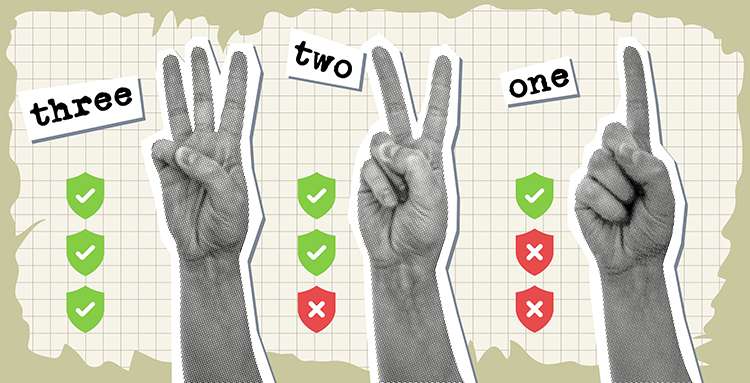
| Rule Component | What It Means | Why It Matters |
|---|---|---|
| Three Copies | Original + 2 backups | Protects against device failure and single storage loss |
| Two Storage Types | External drive + cloud (or different media) | Failure of one type doesn't eliminate all copies |
| One Off-Site | At least one copy away from main location | Protects against local disasters (fire, theft, flood) |
This structure protects against most common failures: local device failure, storage type failure, and local disasters. This isn't theoretical. It's the framework used by NASA, major hospitals, and government agencies protecting irreplaceable data. It's proven.
Sara doesn't follow this framework. She keeps one or two copies in the same place. Eleanor does follow it. And the difference is real.

The Fourth Misconception: Off-Site Backup Is Optional
Some people recognize that local copies alone aren't enough. They create backups on external drives. But they skip the third layer: an off-site copy stored somewhere else.
An off-site backup protects against local risks that affect every device in one place. A house fire. A burglary that takes the computer and all nearby storage. A flood. A power surge that damages connected equipment.
What Sara is doing
Sara keeps everything in her apartment. Her phone, her computer, her external backup drive. If a fire damages that apartment, everything is destroyed. The photos were never uploaded to any independent location. She thinks the risk is small. It probably is. But when it happens, the loss is total.
What Eleanor is doing
Eleanor keeps her computer and phone in her apartment. But her third copy is in encrypted storage that's hosted somewhere else entirely. If her apartment burns down, the off-site copy remains untouched and accessible. Eleanor is no longer dependent on the safety of one building.

The Real Difference: Control and Custody
This is where Sarah and Eleanor's approaches diverge in a way that matters beyond just recovery.
Most cloud storage services promise that your photos are protected. But protection means something specific: the service has custody of your photos. The company controls encryption keys. The company decides what happens if there's a security breach. The company's policies determine whether you can access your own files.
What Sarah is doing
Sarah relies on her cloud provider's security. She hopes they're protecting her photos. She trusts their encryption. She has no direct control over her own data once it's in their system.
This is fine if you trust the service. It's not fine if you want control.
What Eleanor is doing
Eleanor uses an off-site backup that keeps her in control. Her photos are encrypted before they ever leave her device. The backup service stores the encrypted files, but cannot access them. Eleanor holds the keys. She determines who can access the photos. She's responsible for recovery if something goes wrong.
This shifts the entire dynamic. Eleanor is no longer relying on a company's security, policies, or choices. She's relying on encryption and her own credentials.
For people who care about privacy, this matters. It means the backup protects photos and protects privacy at the same time.
See how different backup approaches compare and which works best for your situation.

What to Do Now
If you recognize yourself in Sarah's approach, your photos are probably more vulnerable than you think.
Start here:
- Identify where your photos actually live right now (phone, computer, cloud, external drive, etc.)
- Count how many independent copies exist
- Check if one local failure could destroy multiple copies
- Verify that at least one copy is stored outside your main location
Most people will find that they have two copies in the same place, or one copy that depends on a single account.
That's not unusual. Most people's photo backup is incomplete.
The good news is that fixing it doesn't require replacing everything you have. It usually means adding one more layer: an independent off-site backup that protects your library when the rest of the setup has a problem.
Discover practical backup workflows for phone users, families, photographers, and travelers.

How to Test If Your Photo Backup Actually Works
A backup system sounds reliable until you actually need it.
That is when the difference becomes clear.
Restore testing shows whether your setup works in real conditions, not just in theory.
Start with a simple check:
- Can you restore photos from your backup copies?
- Can you access your backup from another device?
- Can you restore your full library when needed?
At first glance, most systems look fine. Files are there. Folders look complete.
But recovery is a separate step.
Sarah might find that access depends on one device. She might notice that restoring files takes longer than expected. In some cases, she might realize that the backup exists, but she has never actually tried to restore it.
Eleanor tests regularly. She knows her backups work. She's restored from them before, so she trusts the system.
That is where testing becomes important.
Try restoring a small folder to another device. Then check that the photos open correctly and that the structure is intact.
For encrypted storage, this step matters even more.
The system protects your files, but it also puts responsibility on you. Access depends on your credentials and your ability to open the encrypted backup. The provider cannot restore files for you.
That changes how backup should be understood.
Having a copy matters. Being able to restore from it is what actually counts.
Once this is tested, the system becomes much easier to trust.
Without testing, backup remains an assumption. With testing, it becomes something you can rely on.
Why This Matters Right Now
Photos aren't data. They're the first birthday, the last holiday with someone who's gone, the ordinary Tuesday that turned out to matter. You cannot recreate them.
Once a photo library is lost, it's gone. No recovery is complete. No backup can recreate what wasn't preserved.
Sarah learned this the hard way. Eleanor learned it ahead of time.
The misconceptions covered here are common because backup setups don't feel urgent until something goes wrong. But by then, it's too late.
Your photos deserve a system that actually protects them. Not one that looks safe on paper, but one that actually works when something fails.
The choice between Sarah's approach and Eleanor's isn't about being perfect or paranoid. It's about whether you're willing to spend a few hours now to protect years of memories that cannot be replaced.
You know which one you want to be.
Frequently asked questions
What is the 3-2-1 backup rule?
The 3-2-1 rule means keeping three copies of your photos, stored on two different types of storage, with one copy stored off-site in a separate location. This framework is used by NASA, hospitals, and government agencies to protect irreplaceable data.
Is cloud sync the same as backup?
No. Cloud syncing keeps multiple copies identical and deletes files everywhere if you delete them on one device. A backup creates a snapshot at a point in time and protects against accidental deletion. They work in opposite ways.
Why isn't an external hard drive enough for backup?
An external hard drive sitting in the same location as your computer is vulnerable to the same local risks: fire, theft, power surge, or ransomware. A complete backup requires at least one copy stored off-site, away from your main devices.
How do I test if my photo backup actually works?
Try restoring a small folder from your backup to another device and verify that files open correctly. Test access from a different computer or device. For encrypted storage, verify you can restore using your credentials. A backup only counts if you can actually restore from it.
What protects my photos from ransomware?
An off-site backup that is not regularly connected to your computer or synced to your main cloud account. If ransomware encrypts your devices, an independent off-site copy remains untouched and accessible for recovery.
Should I keep my backup encrypted?
Yes. End-to-end encrypted storage means your photos are encrypted before leaving your device, so the backup service cannot access them. You hold the encryption keys, maintaining privacy and security even in off-site storage.